
新しいホームページを作る機会があると、必ずと言って良いほど必要になるのが問い合わせフォームです。今までなぜか毎回、手作業でスタイルシートを作って来たのですが、さすがにこういうものは雛形が欲しいなと思いデザインをコピペできるようにしてみました。ここでは、お問合せのプラグイン「Contact Form 7」で出力されるフォームをキレイに整えるスタイルシートをご紹介します。
Contact Form 7のフォームを整えるスタイルシート
まず、前提としてここではお問合せフォームをテーブルで組む必要がありますので、仮に下記のような形でフォームを作成した場合の前提で話を進めていきます。
コンタクトフォームの編集コード
<table class="contact">
  <tr>
    <th>お名前</th>
    <td>[text* your-name]</td>
  </tr>
  <tr>
    <th>電話番号</th>
    <td>[tel* your-tel]</td>
  </tr>
  <tr>
    <th>メールアドレス </th>
    <td>[email* your-email]</td>
  </tr>
  <tr>
    <th>ホームページ</th>
    <td>[url website]</td>
  </tr>
  <tr>
    <th>お問合せ番号</th>
    <td>[number your-number]</td>
  </tr>
  <tr>
    <th>生年月日</th>
    <td>[date birthday]</td>
  </tr>
  <tr>
    <th>ドロップダウン</th>
    <td>[select item-select "アイテム1" "アイテム2" "アイテム3"]</td>
  </tr>
  <tr>
    <th>チェックボックス</th>
    <td>[checkbox item-checkbox use_label_element "アイテム1" "アイテム2" "アイテム3"]</td>
  </tr>
  <tr>
    <th>ラジオボタン</th>
    <td>[radio item-radio use_label_element default:1 "アイテム1" "アイテム2" "アイテム3"]</td>
  </tr>
  <tr>
    <th>ファイル</th>
    <td>[file your-file]</td>
  </tr>
  <tr>
    <th>題名</th>
    <td>[text your-subject]</td>
  </tr>
  <tr>
    <th>メッセージ本文</th>
    <td>[textarea your-message]</td>
  </tr>
</table>

[acceptance confirmation optional]承認確認する[/acceptance]

[submit "送信"]
ここでは一般的に使いそうなタグは入れておきましたが、「クイズ」は使ったことがないので省略させていただきました。下記が実際に表に表示されるフォームです。
※↓このサイトのスタイルが適用されてしまっているので、条件によって見た目は変わります。
| お名前 | |
|---|---|
| 電話番号 | |
| メールアドレス | |
| ホームページ | |
| お問合せ番号 | |
| 生年月日 | |
| ドロップダウン | |
| チェックボックス | |
| ラジオボタン | |
| 題名 | |
| メッセージ本文 |
余談になりますが、チェックボックスとラジオボタンを作成するときは、「個々の項目を label 要素で囲む」にチェックを入れると、ラベルをクリックで選択ができるようになるのでユーザービリティが向上します。初期設定ではチェックが入っていませんので気をつけてくださいね。
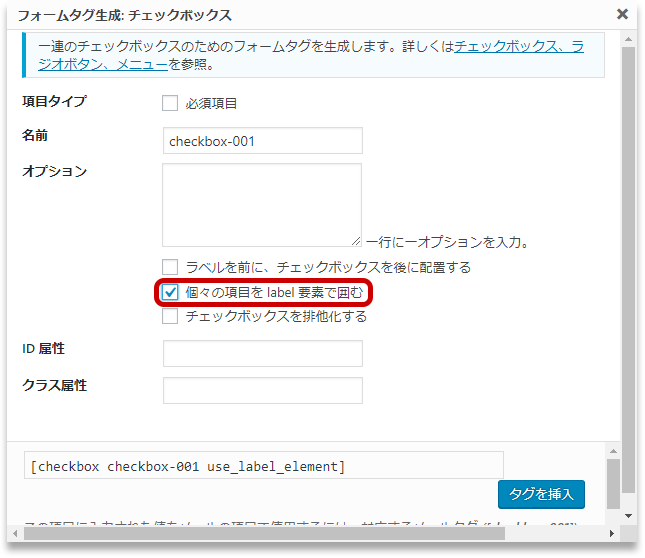
そして、生成されたHTMLがこちらです。
HTML
<table class="contact">
  <tr>
    <th>お名前</th>
    <td><span class="wpcf7-form-control-wrap your-name"><input type="text" name="your-name" value="" size="40" class="wpcf7-form-control wpcf7-text wpcf7-validates-as-required" aria-required="true" aria-invalid="false" /></span></td>
  </tr>
  <tr>
    <th>電話番号</th>
    <td><span class="wpcf7-form-control-wrap your-tel"><input type="tel" name="your-tel" value="" size="40" class="wpcf7-form-control wpcf7-text wpcf7-tel wpcf7-validates-as-required wpcf7-validates-as-tel" aria-required="true" aria-invalid="false" /></span></td>
  </tr>
  <tr>
    <th>メールアドレス </th>
    <td><span class="wpcf7-form-control-wrap your-email"><input type="email" name="your-email" value="" size="40" class="wpcf7-form-control wpcf7-text wpcf7-email wpcf7-validates-as-required wpcf7-validates-as-email" aria-required="true" aria-invalid="false" /></span></td>
  </tr>
  <tr>
    <th>ホームページ</th>
    <td><span class="wpcf7-form-control-wrap website"><input type="url" name="website" value="" size="40" class="wpcf7-form-control wpcf7-text wpcf7-url wpcf7-validates-as-url" aria-invalid="false" /></span></td>
  </tr>
  <tr>
    <th>お問合せ番号</th>
    <td><span class="wpcf7-form-control-wrap your-number"><input type="number" name="your-number" value="" class="wpcf7-form-control wpcf7-number wpcf7-validates-as-number" aria-invalid="false" /></span></td>
  </tr>
  <tr>
    <th>生年月日</th>
    <td><span class="wpcf7-form-control-wrap birthday"><input type="date" name="birthday" value="" class="wpcf7-form-control wpcf7-date wpcf7-validates-as-date" aria-invalid="false" /></span></td>
  </tr>
  <tr>
    <th>ドロップダウン</th>
    <td><span class="wpcf7-form-control-wrap item-select"><select name="item-select" class="wpcf7-form-control wpcf7-select" aria-invalid="false"><option value="アイテム1">アイテム1</option><option value="アイテム2">アイテム2</option><option value="アイテム3">アイテム3</option></select></span></td>
  </tr>
  <tr>
    <th>チェックボックス</th>
    <td><span class="wpcf7-form-control-wrap item-checkbox"><span class="wpcf7-form-control wpcf7-checkbox"><span class="wpcf7-list-item first"><label><input type="checkbox" name="item-checkbox[]" value="アイテム1" /><span class="wpcf7-list-item-label">アイテム1</span></label></span><span class="wpcf7-list-item"><label><input type="checkbox" name="item-checkbox[]" value="アイテム2" /><span class="wpcf7-list-item-label">アイテム2</span></label></span><span class="wpcf7-list-item last"><label><input type="checkbox" name="item-checkbox[]" value="アイテム3" /><span class="wpcf7-list-item-label">アイテム3</span></label></span></span></span></td>
  </tr>
  <tr>
    <th>ラジオボタン</th>
    <td><span class="wpcf7-form-control-wrap item-radio"><span class="wpcf7-form-control wpcf7-radio"><span class="wpcf7-list-item first"><label><input type="radio" name="item-radio" value="アイテム1" checked="checked" /><span class="wpcf7-list-item-label">アイテム1</span></label></span><span class="wpcf7-list-item"><label><input type="radio" name="item-radio" value="アイテム2" /><span class="wpcf7-list-item-label">アイテム2</span></label></span><span class="wpcf7-list-item last"><label><input type="radio" name="item-radio" value="アイテム3" /><span class="wpcf7-list-item-label">アイテム3</span></label></span></span></span></td>
  </tr>
  <tr>
    <th>題名</th>
    <td><span class="wpcf7-form-control-wrap your-subject"><input type="text" name="your-subject" value="" size="40" class="wpcf7-form-control wpcf7-text" aria-invalid="false" /></span></td>
  </tr>
  <tr>
    <th>メッセージ本文</th>
    <td><span class="wpcf7-form-control-wrap your-message"><textarea name="your-message" cols="40" rows="10" class="wpcf7-form-control wpcf7-textarea" aria-invalid="false"></textarea></span></td>
  </tr>
</table>

<p><span class="wpcf7-form-control-wrap confirmation"><span class="wpcf7-form-control wpcf7-acceptance optional"><span class="wpcf7-list-item"><label><input type="checkbox" name="confirmation" value="1" aria-invalid="false" /><span class="wpcf7-list-item-label">承認確認する</span></label></span></span></span></p>

<p><input type="submit" value="送信" class="wpcf7-form-control wpcf7-submit" /></p>
そして、このフォームにスタイルシートを適用させたものが下記になります。
ボタンで表示を切り替えてご覧ください。
See the Pen
contact form by kenichi (@ken81)
on CodePen.
CSS
table.contact {
  border-collapse: collapse;
  margin-right: auto;
  margin-left: auto;
}
table.contact td,
table.contact th {
  border: 1px solid #ddd;
  padding: 10px;
}
table.contact th {
  background: #f9f9f9;
  font-weight: normal;
  padding-right: 1em;
  padding-left: 1em;
  line-height: 35px;
}
table.contact td input[type="text"],
table.contact td input[type="tel"],
table.contact td input[type="email"],
table.contact td input[type="url"],
table.contact td input[type="number"],
table.contact td input[type="date"],
table.contact textarea,
table.contact select{
  border: 1px solid #ddd;
  padding: 10px;
}
input[type="submit"]{
  display: block;
  margin: 2em auto;
  background: #666;
  border: none;
  color: #fff;
  cursor: pointer;
  height: 4em;
  line-height: 4em;
  padding: 0 4em;
}
textarea.wpcf7-form-control.wpcf7-textarea {
  width: 100%;
  box-sizing: border-box;
}
.wpcf7-form-control.wpcf7-acceptance{
  display: block;
  text-align: center;
}
.wpcf7-list-item label {
    cursor: pointer;
}
table.contact th.required::after{
  content: "必須";
  color: #f00;
  font-size: .7em;
  margin-left: 3px;
}

@media screen and (max-width: 600px) {
  table.contact td,
  table.contact th{
    border: none;
    display: block;
  }
  table.contact th{
    text-align: left;
    background: none;
    font-weight: bold;
    margin-top: .7em;
    margin-bottom: -10px;
  }
}
上記はもちろん、スマホにも対応させてあります。
javascript
jQuery(function() {
    jQuery('.wpcf7-validates-as-required').parents('td').prev('th').addClass('required');
});
さらに、必須項目がある場合は項目名のところに自動で「必須」と表示されるようにjQueryのコードも作りました。
以上が、Contact Form 7のフォームを整えるスタイルシートでした。